
Integrations
In this section a user can integrate chats and calls from other systems into Euphoric flow. Some other CRM systems can be also added.
List of Integrations

The Integrations list can be sorted by name, company, date added and the last date modified.
All integrations — all active Integrations.
Disabled integrations — all Integrations that are no longer supported.
Integration settings can be opened by clicking on the Integration name or the Edit button to the right.
You can also create a new integration by pressing the Add button under the Euphoric search field.
Integration ID
 Every integration has its own ID that is required in order to set up certain integrations with other platforms. You can find the Integration ID in the URL of an Integration settings menu.
Integration settings
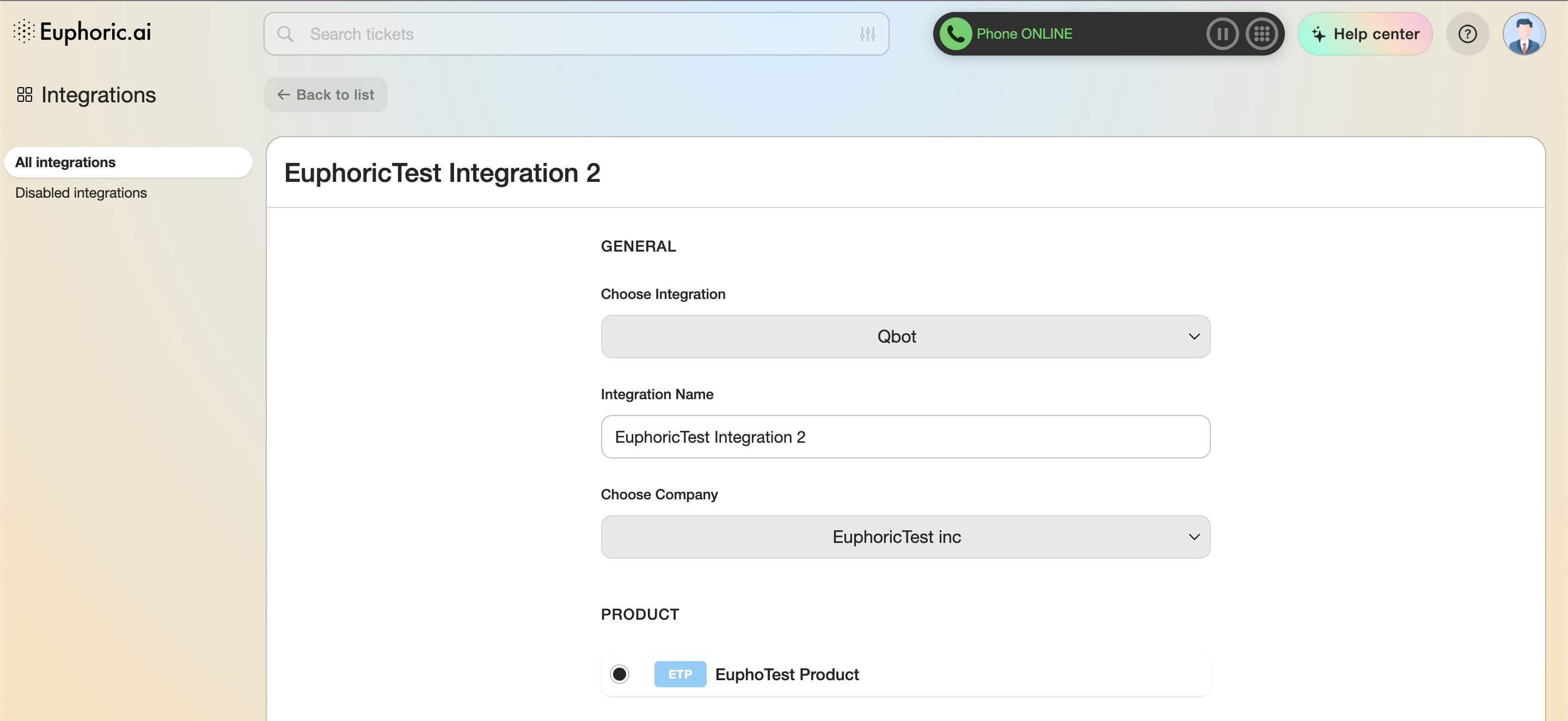
1. General
1.1. Choose integration from the drop-down list. In order to make a regular messenger chat or bot integration, you should choose QBot.
1.2. Integration name. The name of the integration. To navigate the integrated external services, the name of the service should be added to the name of the integration.
1.3. Choose company. Select the company the integration will be assigned to.
2. Product
Allows to select a product of the chosen company in the previous step.
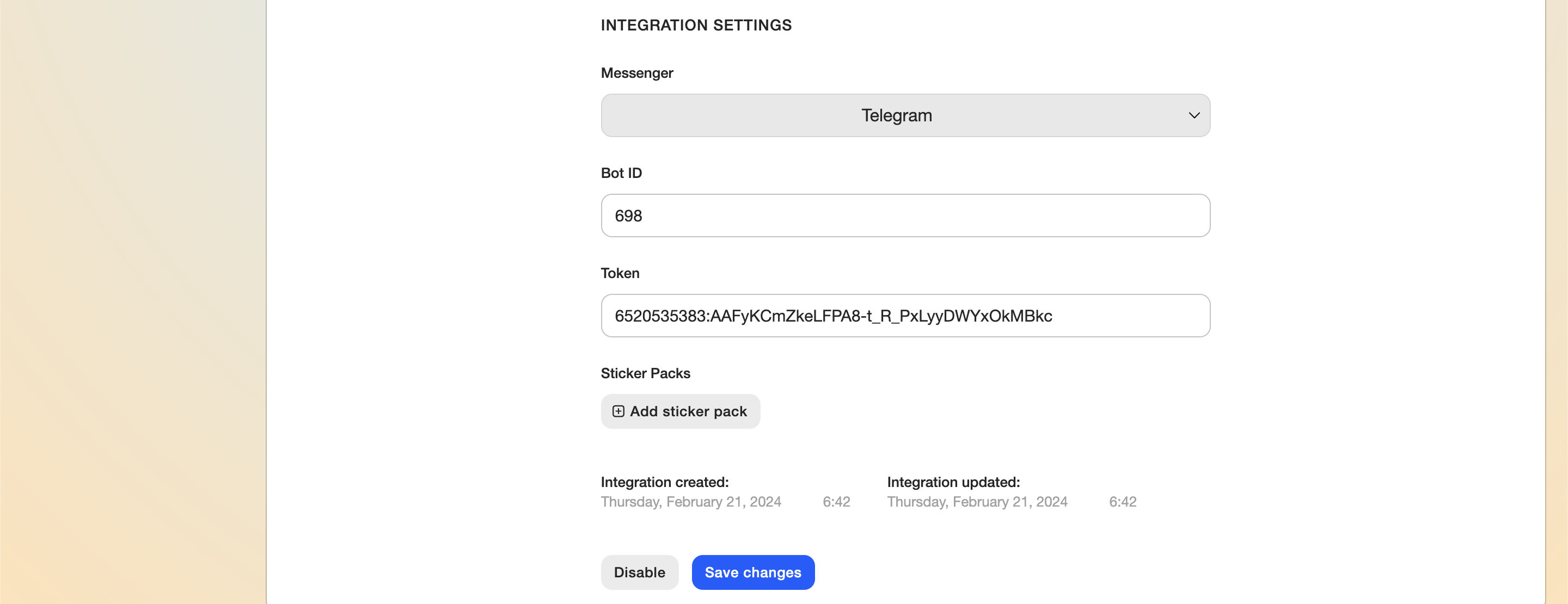
3. Integration settings
These settings will change according to the service selected for the integration.
3.1. Messenger. A messenger the integration will be created with, with the help of qBot. (Telegram, WhatsApp, Viber).
3.2. Bot ID. Bot ID created in the qBotBuilder section. The name of the bot can be found in the end of the browser address bar URL in the editing menu of the selected bot.
3.3. Token. A special key generated on creating of a bot in the selected messenger. Learn more about creating a bot in Chat Bot Builder, as well as in the instruction block on the right side of the screen.
3.4. Instructions on chat integration settings. Right now, it is available only for QBot integration.
10. Status
Information about when the Integration was added and last modified.
The Save and Disable buttons can be found at the end of the list. A disabled Integration is automatically transferred to the disabled Integrations list.