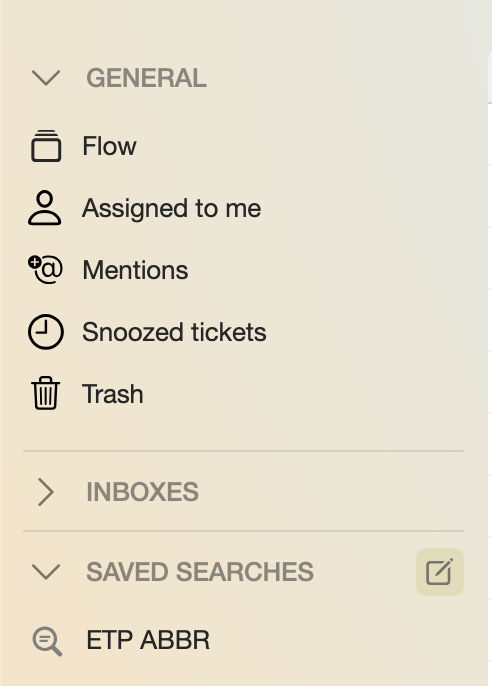
Tickets
A ticket is a user support request that comes by email, call, chat, or through a special field in the product we support.
A ticket is an independent object containing all information about all events (calls/emails/chats). It is created automatically when the QCRM system interacts with a client or a consultant.
1. Tickets Flow
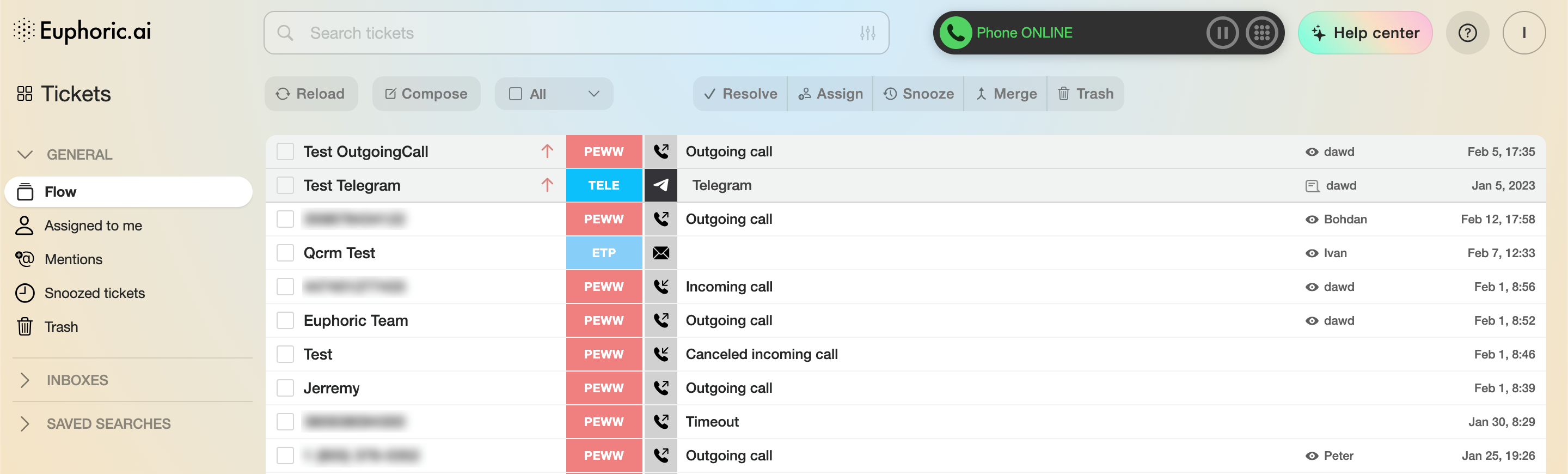
Every request comes into our system in the following form:
-
Flow. General unfiltered list of all tickets.
-
Assigned to me. A group of tickets assigned to an agent.
-
Mentions. A group of tickets that mention an agent in the comments. To mention an agent in the comments, enter their username as follows: @johndoe. A suitable agent can be selected in the window that opens. After this, the agent will be able to find the ticket in the group.
-
Snoozed tickets. Tickets with snoozed notifications.
-
Trash. Tickets that were moved to the Trash category.
- Inboxes. The list of all available mailboxes to the current user. Selecting a particular mailbox will apply a search filter, showing all tickets, associated with the selected mailbox in the flow.
-
Saved searches. A group of tickets filtered by a saved search query (more about it in “Saving a search query”).
-
Reload. Reload the page with a group of tickets.
-
Compose. Compose a new email. It will open a new window with address, subject, and email body input fields.
-
Selection. Select all tickets from the list. Separate tickets can also be selected (17).
-
Resolve. Mark the selected tickets as Resolved.
-
Assign. Assign the selected tickets to another agent.
-
Snooze. Snooze a ticket for a specified period of time:
- Until tomorrow. Snooze a ticket until the next day from the Created date.
- Until next week. Snooze a ticket for 7 days from the Created date.
- Pick date & Time. Snooze a ticket for a specified period of time.
By clicking the Pick date & time button, a pop-up window with a calendar with a choice of date and time you can snooze the ticket for will open. After choosing the date and time, click Snooze.
-
Merge. Merge selected tickets into one.
-
Trash. Move selected tickets into Trash (5).
-
Ticket selection button. It appears when the cursor hovers over a specified list area.
-
A customer's name/phone number/email address.
-
Product abbreviation. An upward arrow indicates an outgoing message, a downward arrow indicates an incoming email.
-
"VIP" note. Tickets with a higher priority. They are highlighted on top of the general list. If there is no icon, users will see right-facing arrows. They indicate that the ticket contains incoming and outgoing messages.
-
Ticket type icon.
-
A short description of a ticket and a small part of the inquiry’s text.
-
A sign indicating an agent’s interaction with a ticket. The Eye indicates the ticket has been viewed by an agent but wasn’t processed. Three animated dots — the ticket has been processed by an agent, other agents temporarily cannot access the answer. Blue text sign — a comment was added. Pink text sign — ticket was escalated to the second tier. Green check mark — the ticket was resolved.
-
The name of the agent who edited the ticket last.
-
Last edit time.
1.1. Search queries
Every ticket has a filtering option for a better navigation.
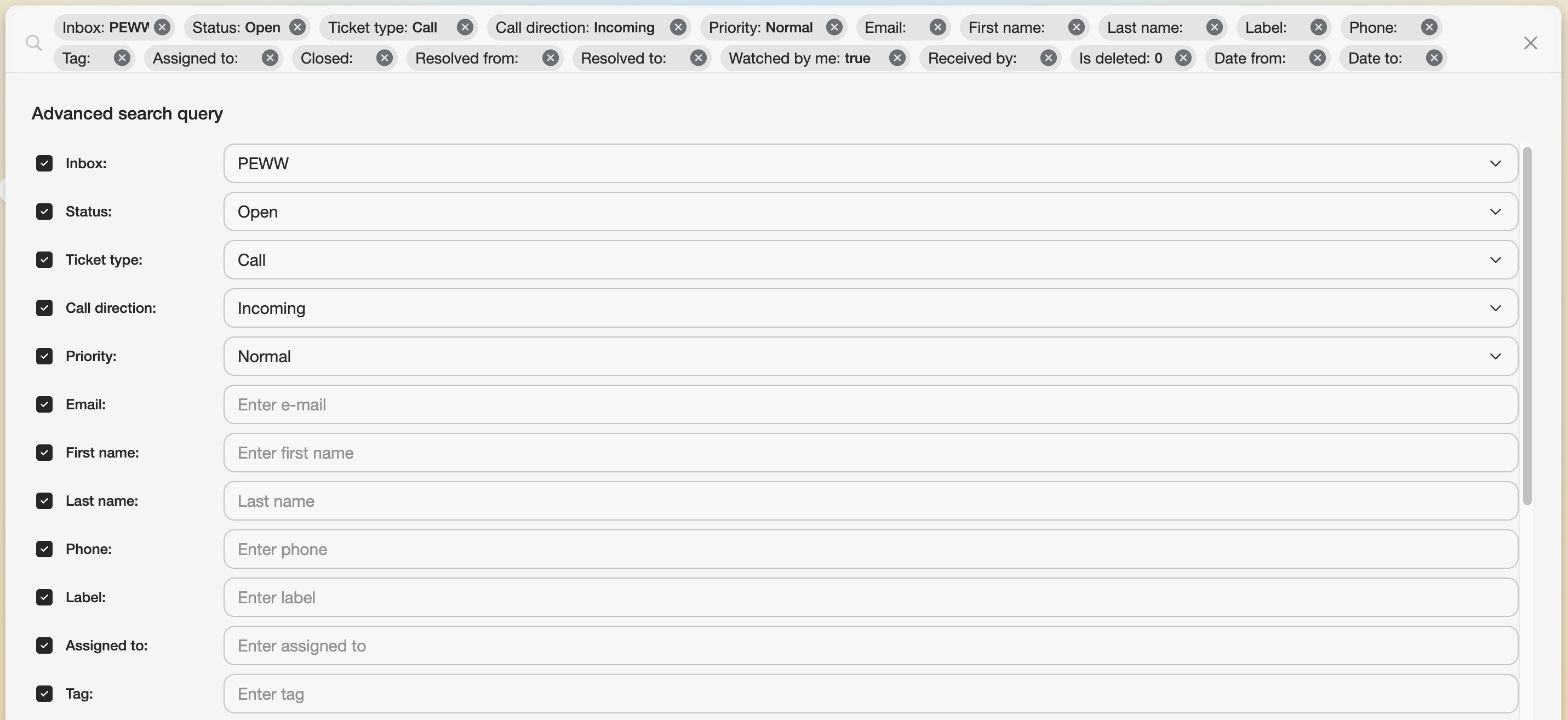
You can choose a particular filter by clicking on the settings icon in the right corner of the Euphoric search field. Also, you can type the filters into the search field manually, for example: abbreviation: ABR and press Enter on your keyboard.

The most popular options are inbox, email and type.
1.2. Saving a search query
To access a filtered group of tickets fast, any search query can be saved into the Saved searches drop-down list on the left side of the interface.
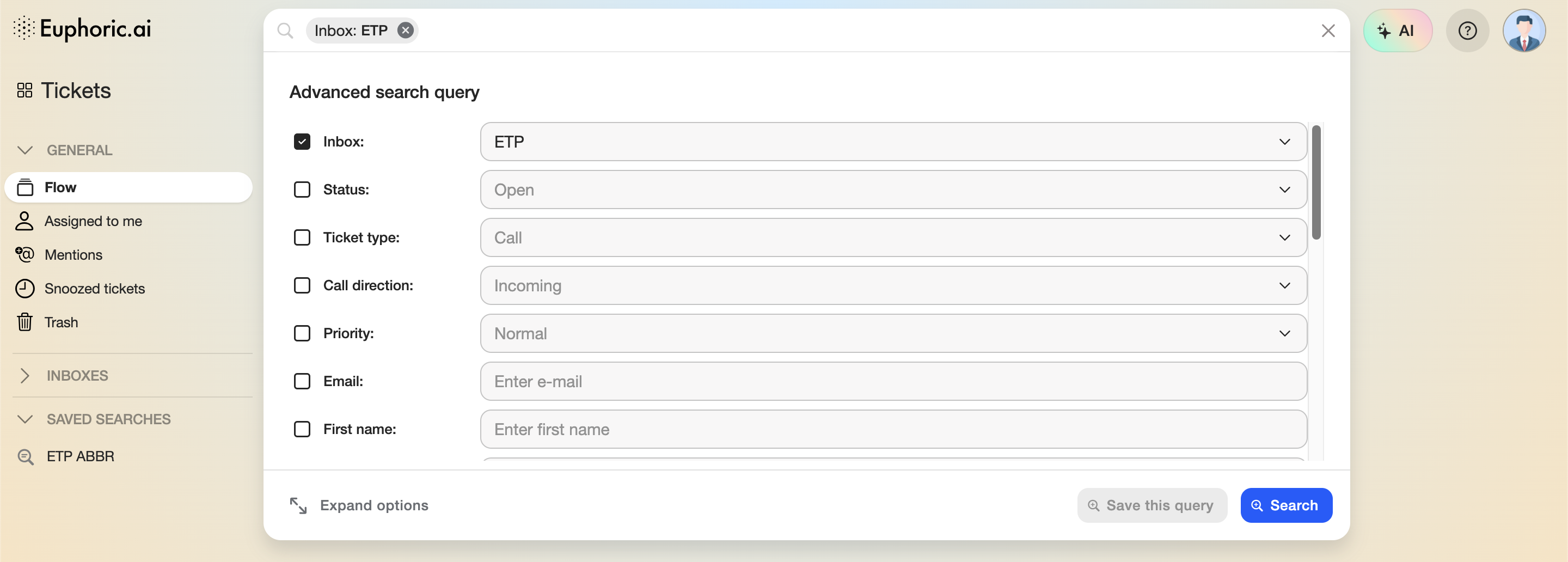
First, you'll need to open the search bar filters menu by clicking on the settings icon in the right corner of the Euphoric search field. Then a search query should be formed by selecting at least one filter. Then press Save this query button.

On the next step, enter a name of the new query and press Save search. The saved query will appear in the list on the left side of the screen with the name you entered on the previous step.
If a saved search query needs to be deleted, hover a cursor over the right side of the Saved searches list heading and click on the edit button.