
Browser cache, cookies and local storage clearing
Browser cache & cookies clearing
Open Chrome browser and click three kebab dots in the upper right corner.
-
Hover cursor over History, in a new menu click History again.
-
You should see a screen with a history of recently visited sites.
-
On the left side of this screen you should see a button Clear browsing data, click on it.
-
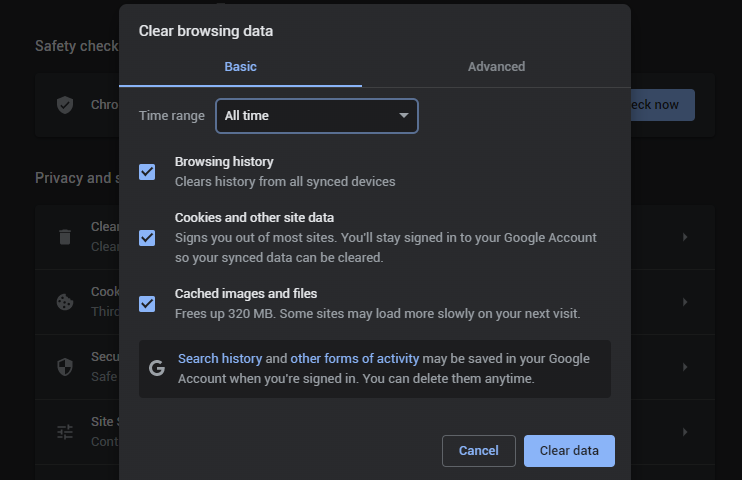
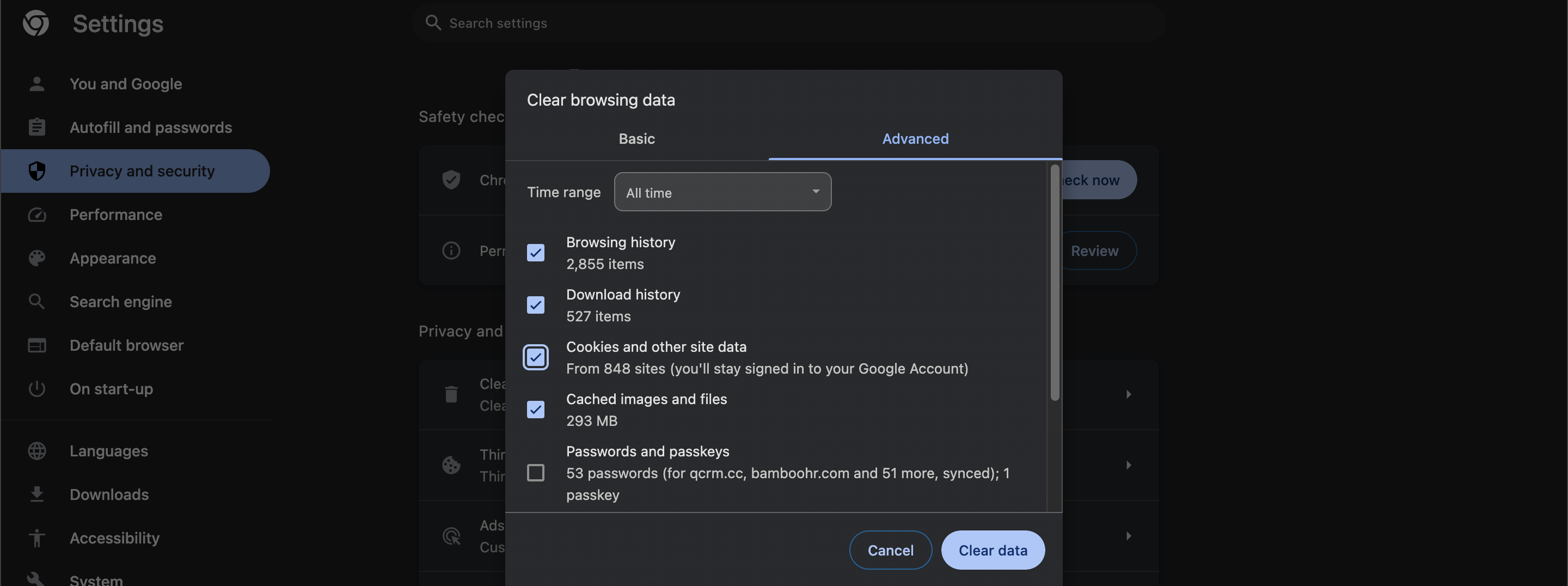
Then you will see a new menu with a bunch of clearing options. You may use Basic settings for cache clearing, but with some adjustment.
-
Set time range to All time and make sure to check the next options: Browsing history, Cookies and other site data, Cached images and files.
-
If all options meet the recommendations, press Clear data. The process may take a while. Although, you should wait until the process is complete and then get back to work.
For quick access to the option of browsing data сlearing you can press Shift + ⌘ + Forward Delete on MacOS or Ctrl + Shift + Delete on Windows.
Selective cookies clearing
-
Log out of the QCRM system and close its tabs. -
Open chrome settings by clicking on kebab dots in the upper right corner → Settings.
-
In the left table of contents choose Privacy and Security.
-
In the list check Cookies and other site data.
-
In the bottom of the list you should see a button See all cookies and site data.
-
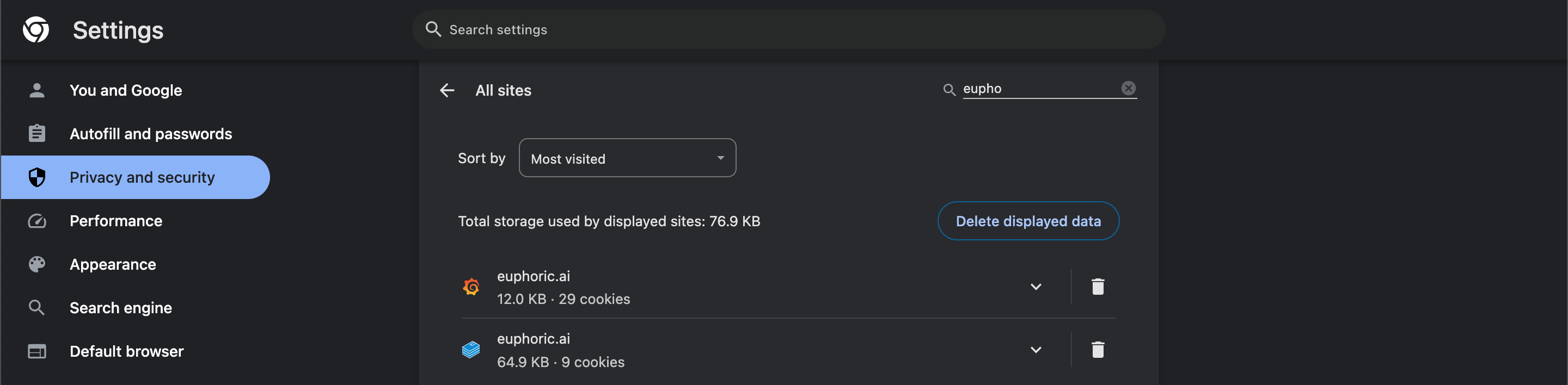
In this list you may use a search field for better navigation. Search for QCRM.
-
Click on a trash bin icon next to each entry with a ‘QCRM’ quote in it.
-
You may close the settings tab and log into the QCRM system again.
-
For quick access to the menu of All cookies and site data just paste the next path to the address bar of your browser: chrome://settings/content/all

Localstorage clearing
-
Chrome browser does not provide a user-friendly interface for local storage clearing, however, this operation is required in order to resolve some kinds of site malfunctioning.
-
You may clear the chrome localstorage in the next way:
-
Open Chrome browser.
-
Log into your QCRM account.
-
Press ⌘(Command) + ⌥(Option) + I on MacOS and Ctrl + Shift + I on Windows for access do developer tools. Additionally, you may get there by pressing F12.
-
In case if you don’t see the Application section, you should click on the icon of two right arrows and check the section Application.
-
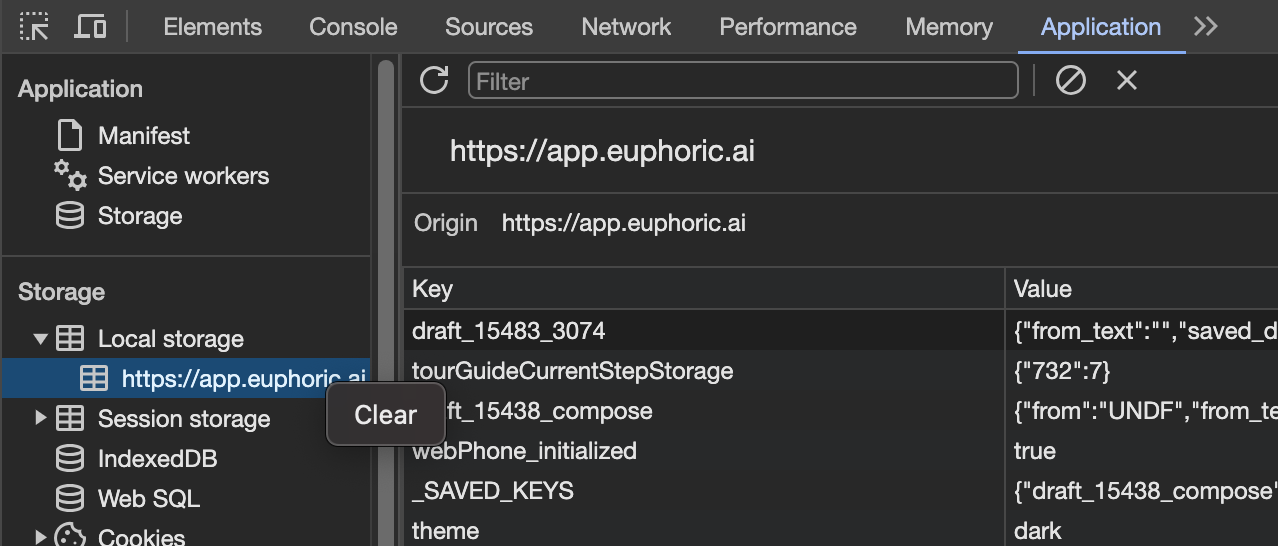
Then expand the Local Storage section.
-
In order to clear it you should right-click on each entry below the Local Storage section and press Clear.
After these actions your Cache, Cookies and Local storage is wiped off of temporary data.
When it gets useful:
-
The QCRM Calling module displays Running on another tab issue all the time, but there’s only 1 tab with QCRM system.
-
After the QCRM Production version update stated functions in Release notes do not work.