Browser cache & local storage clearing
Browser cache & cookies clearing
Open Chrome browser and click three kebab dots in the upper right corner.
|
-
Hover cursor over History, in a new menu click History again.
-
You should see a screen with a history of recently visited sites.
-
On the left side of this screen you should see a button Clear browsing data, click on it.
-
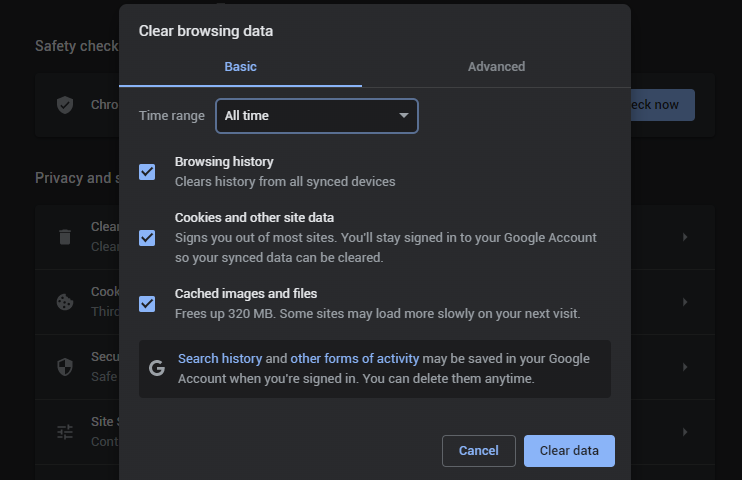
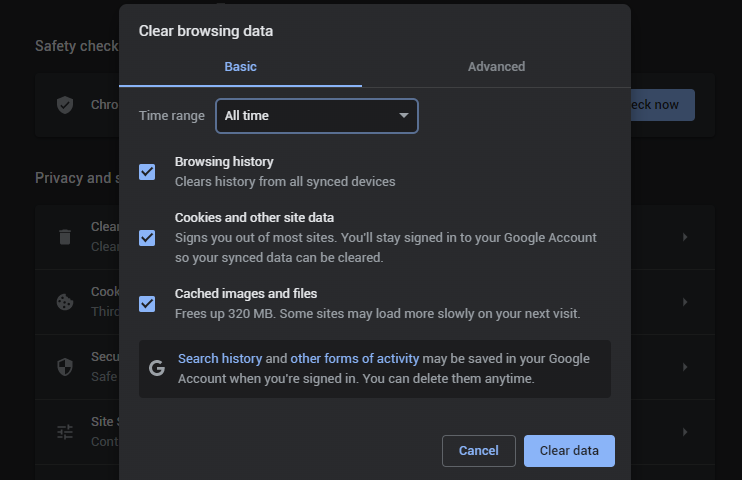
Then you will see a new menu with a bunch of clearing options. You may use Basic settings for cache clearing, but with some adjustment.
-
Set time range to All time and make sure to check the next options: Browsing history, Cookies and other site data, Cached images and files.
-
If all options meet the recommendations, press Clear data. The process may take a while. Although, you should wait until the process is complete and then get back to work.
|
For quick access to the option of browsing data сlearing you can press Shift + ⌘ + Forward Delete on MacOS or Ctrl + Shift + Delete on Windows.
AllSelective cookies cleaningclearing
